Buy a gift from a shared GiftList
Updated
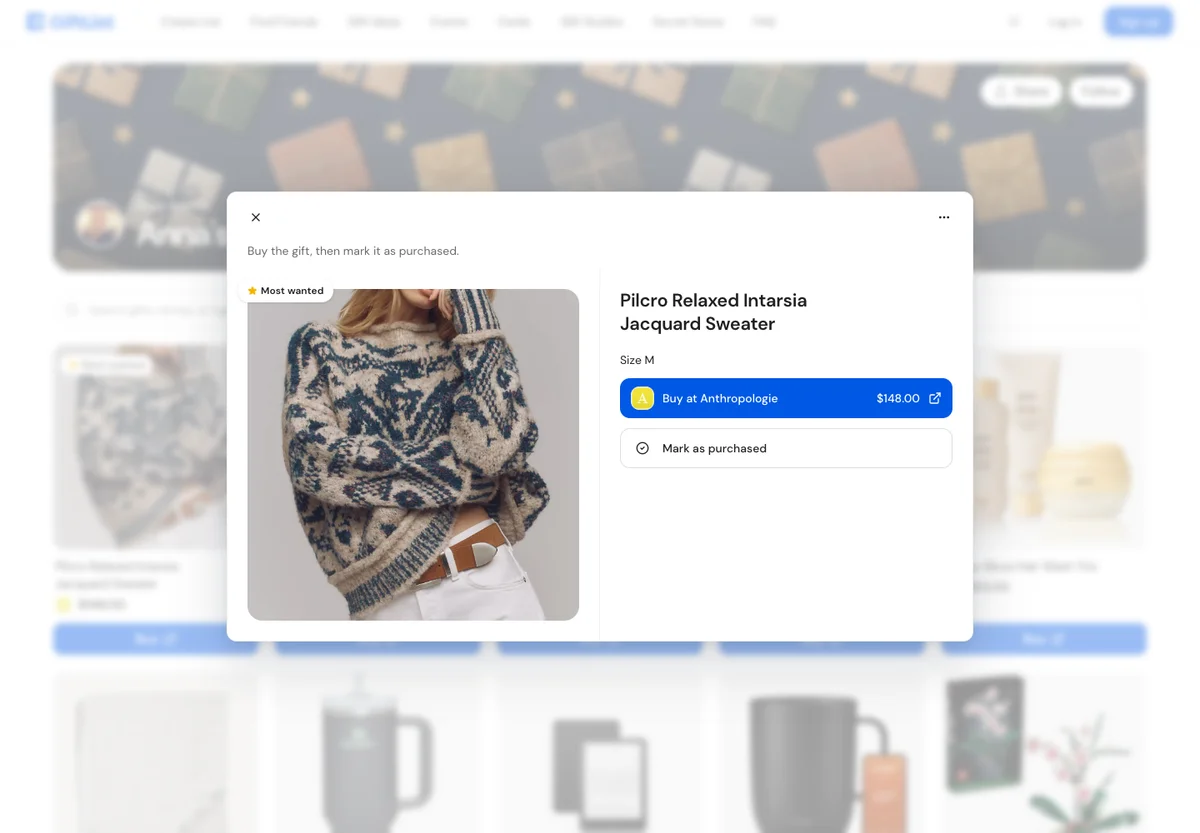
Open the list link, choose an available gift and buy it from the retailer. Then return to GiftList and choose Mark as purchased so other shoppers know what you bought. You do not need a GiftList account.
GiftList is not a store
There is no cart, checkout or payment on GiftList, and nothing for GiftList to ship or track. You pay the store directly, on the store's own website or app. Marking a gift purchased doesn't charge you or place an order; it only tells other shoppers the gift is taken. For order status, delivery, returns or refunds, contact the store you bought from.
Watch the walkthrough
Prefer to watch? The written steps cover the full task.
Chapters (7)
Chapters (7)
Before you start
Have the actual list link from the person sharing it. If the list asks for a password, ask that person for it. A GiftList account does not replace the list password.
Buy and record your gift
Watch this step, from 0:26Watch this step, from 0:57
- Open the shared link in your browser or GiftList app.
- Choose a gift that is still available. Check its notes for size, color and quantity. If an item is partly claimed, buy only the quantity still needed.
- Open the gift and choose the store button, Buy at [store]. Some gifts offer more than one store link. Check the retailer's current price, stock, variant and delivery date before ordering.
- Complete checkout at the retailer. Use the list's delivery instructions if supplied; otherwise ask the list owner where to send or bring it. GiftList does not fill in the retailer's checkout address for you.
- Return to the same GiftList, open the gift and choose Mark as purchased.
- Enter your name and email, add a message if you want, and check the quantity when shown. Choose Continue.
- Add any optional order, tracking or receipt details, then choose Mark as purchased to finish.
Other shoppers can now see the recorded purchase. The list owner normally keeps the surprise until they reveal gifts. Opening a store link alone does not update the list.
Common situations
I already bought it elsewhere. You can record the same gift on the list. Check that your purchase matches the recipient's requested size, color and quantity, then follow steps 5–7.
There is no store link. The gift may be an experience or a manually added idea. Read its notes or ask the owner. A link is not required for an item to be on a list.
I cannot find a shipping address. Ask the owner. Do not assume GiftList or the store knows it.
The item is marked purchased. Choose another available gift unless you know there is still quantity needed. The mark is a shopper's record; it is not a retailer order confirmation.
These steps work on the web and in supported iPhone/Android app versions. Retailer checkout may open another browser or app; keep the list link so you can return.
Related: Guest details and quantities, undo a reservation, shipping and returns, trouble opening a list.
Still have questions?
Ask our AI help assistant a follow-up, or email the GiftList team.